
Crop Photos into Circles in 3 Seconds
Why pay for Canva Pro or battle Photoshop layers just to make a circular avatar? Create transparent circular headshots with borders on your iPhone for free.
Get Circle Crop Free on App Store⚡ Direct Answer: Best Way to Circle Crop an Image
While Canva requires a paid Pro subscription to export transparent PNGs and Photoshop requires multiple masking steps, the easiest and fastest method is using the dedicated Circle Crop iOS App. It allows fluid pinch-to-zoom framing, 1-tap borders, and lossless transparent exports without subscriptions.
When you search "how to circle crop in photoshop" or "circle crop canva", you are often looking for a quick, pain-free way to turn a normal photo into a clean circular avatar for your profile.
However, both tools come with major friction. Let's break down the exact pros and cons of each method and see why a dedicated mobile app is taking over for creators.
Feature Face-Off: Circle Crop iOS vs Canva vs Photoshop
| Criteria | Circle Crop iOS App | Canva | Adobe Photoshop |
|---|---|---|---|
| Transparent PNG Export | ✅ Free (Included) | ❌ Locked Behind Pro ($120/yr) | ✅ Included ($240/yr sub) |
| Time to Export | ⚡ ~3 Seconds | ⏳ 2–3 Minutes | ⏳ 4–5 Minutes |
| Mobile Touch Optimization | ✅ Native iOS Gestures | ⚠️ Clunky Mobile Web | ❌ Desktop Required |
| One-Tap Colored Borders | ✅ 5 Styles (White, Gold, Neon, Vivid) | ⚠️ Must add separate elements | ⚠️ Requires manual layer styles |
| Ornaments & Floral Frames | ✅ 136+ Designer Frames Built-in | ⚠️ Manual asset searching | ❌ None (Import your own) |
Stunning Avatars Created in Seconds
Check out these sample avatar variations exported directly with the app:
 Clean White
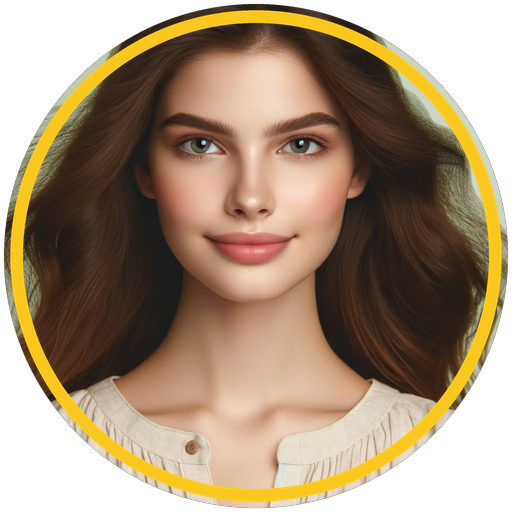 Gold Luxury
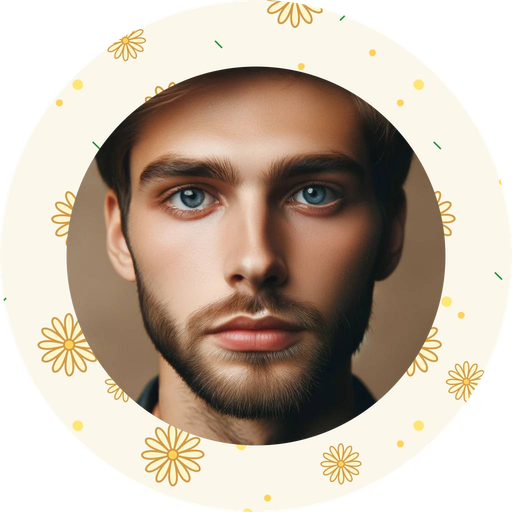 Floral Wreath
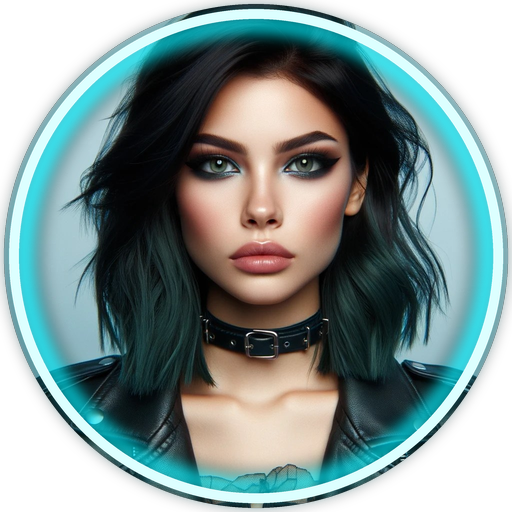 Cyber Neon
 Squircle (iOS)
View all 222 variations in the Live Interactive Gallery →
Quick Reference: Manual Methods
How to Circle Crop in Canva:
- Open Canva and create a blank 1080×1080 design.
- Click Elements → Frames and select the round frame.
- Upload your picture and drag it into the circle frame.
- Note: To download without a solid white background, Canva requires a paid Canva Pro subscription.
How to Circle Crop in Photoshop:
- Open your photo in Photoshop.
- Select the Elliptical Marquee Tool, hold Shift, and drag a circle over your subject.
- Click the Add Layer Mask icon at the bottom of the Layers panel.
- Go to File → Export As → PNG and make sure Transparency is checked.
Skip the Hassle — Crop on Your iPhone
Get pixel-perfect circular profile pictures with custom borders in seconds. No subscriptions, no complicated tools.
📲 Download Circle Crop Free on App StoreFrequently Asked Questions
Can I circle crop on Canva for free with a transparent background?
No. Canva allows you to crop photos into a circle frame for free, but downloading with a transparent PNG background requires Canva Pro. If you use an iPhone, you can use the free Circle Crop app to export transparent PNGs without paying.
How do I avoid blurry circular crops?
Always ensure your crop export resolution matches or exceeds your platform's display size. Exporting at 1080×1080 pixels guarantees your avatar looks crisp on high-DPI smartphone screens and desktop displays.
Comments
Post a Comment