How to Circle Crop on iPhone: 3 Best Ways to Crop Photos into Circles (With Borders & Transparent PNG)
Circle Crop: Photo Crop & PFP
Crop any photo into a true circle, squircle, or hexagon in 3 seconds. Add clean white, gold, or neon rings, choose from 136+ designer ornaments, and export transparent PNGs.
Download Free on App Store⚡ Direct Answer: How to Circle Crop on iPhone
Because the native iOS Photos app only allows square and rectangular crops, the fastest way to circle crop on iPhone is with the free Circle Crop App. Open the app, choose any photo from your camera roll, pinch to zoom and position inside the circular guide, select an optional border ring, and tap Export PNG.
If you have ever tried updating your profile picture on WhatsApp, Instagram, Discord, TikTok, or LinkedIn from your iPhone, you've probably noticed that Apple's built-in Photos app doesn't have a circular crop option.
You are forced to upload a square photo and let the social app randomly cut off your hair, chin, or background. Fortunately, creating a true circular crop photo with a transparent background on iOS takes less than 5 seconds. Here is the complete step-by-step walkthrough.
3 Simple Steps to Circle Crop Any Photo on iPhone
- Install Circle Crop: Photo Crop & PFP: Grab the free app from the Apple App Store.
- Select Your Photo: Tap Choose Photo to pick any portrait, landscape, or selfie from your Camera Roll or Files.
-
Frame & Customize:
- Pinch & Drag: Smoothly position your face in the center of the circle.
- Pick a Border: Tap Clean White, Gold Luxury, Vivid Purple, or Neon Cyan Glow.
- Add an Ornament: Browse 136+ designer frames (Floral wreaths, Royal crowns, Festive sparkles).
- Export as Transparent PNG: Tap Export and save directly to your Photos library in full 1080×1080 HD.
See the Results: 5 Popular Styles Made with Circle Crop iOS
Here is how different photos look after being exported with the app's signature rings and ornaments:
 Clean White Ring
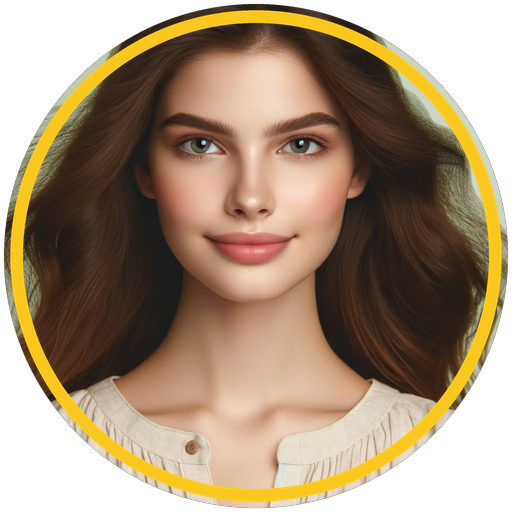 Gold Luxury
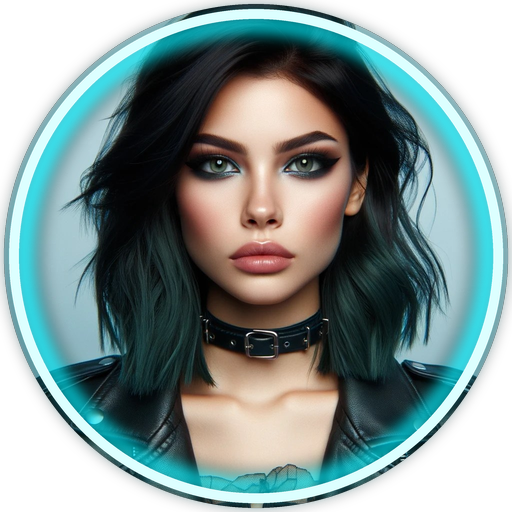 Neon Cyan Glow
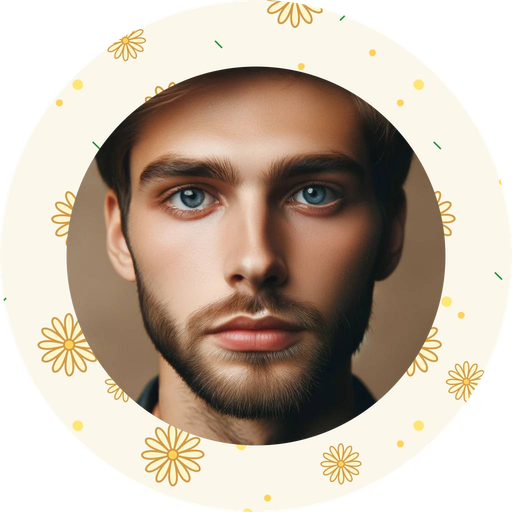 🌸 Floral Wreath
 👑 Vintage Royal
🔗 Click here to explore the full 222 Avatar Interactive Previewer
Why the iPhone Photos App Can't Do True Circle Crops
When you tap "Edit" in Apple's Photos app, the aspect ratio tool only supports rectangles: Freeform, Square, 9:16, 4:5, 5:7, 3:4, 3:5, and 2:3.
Even if you crop to a 1:1 square, the corners remain solid. When you save it, there is no alpha transparency. Circle Crop: Photo Crop & PFP solves this by rendering genuine 32-bit PNGs with curved mathematical clipping and 4x anti-aliasing so your circular edges are razor-sharp.
Ready to Upgrade Your Profile Picture?
Join thousands of creators using Circle Crop on iOS to craft stand-out PFPs for Instagram, LinkedIn, and Discord.
📱 Install Circle Crop Free on iPhoneFrequently Asked Questions
Can I circle crop on iPhone without downloading an app?
The native iOS Photos app does not support circular cropping. While you can use online browser tools, they often compress photos, show intrusive ads, or charge subscription fees for transparent PNG exports. Using a dedicated lightweight iOS app like Circle Crop is faster, offline-capable, and preserves 100% photo quality.
How do I get a transparent background on my circular photo?
In the Circle Crop app, select your background color as Clear / Transparent and export as a PNG file. JPEGs do not support transparency and will always show black or white corners.
What profile sizes does Circle Crop support?
The app includes one-tap social presets for Instagram (320px / 1080px), WhatsApp (500px), TikTok (800px), Discord (128px / 512px), LinkedIn (400px), Telegram, YouTube, and X (Twitter).
Comments
Post a Comment