Open XML files on iPhone: what XML is, how to view & beautify it, find tags, compare diffs, and convert XML to CSV, JSON, or PDF offline with XML Viewer.
Download our app: XML Viewer: Editor & Formatter on the App Store — open XML on iPhone, beautify & minify, find in XML, tree view, side-by-side diff, export to CSV · JSON · PDF. On-device & offline. Free to start · no account.

Short answer: An XML file is structured text with tags. The iPhone Files app can store it, but it won’t beautify, validate, search tags, compare versions, or convert to CSV/JSON/PDF. XML Viewer: Editor & Formatter opens XML from Files, Mail, Safari, Share Sheet, or clipboard — then formats, finds, diffs, and exports privately on your device.
If you landed here searching how to open an XML file on your phone, what an XML file is, why it won’t open, how to format (beautify) messy XML, or how to convert XML to PDF/CSV/JSON — this is the complete guide for iPhone and iPad.
See the app in action

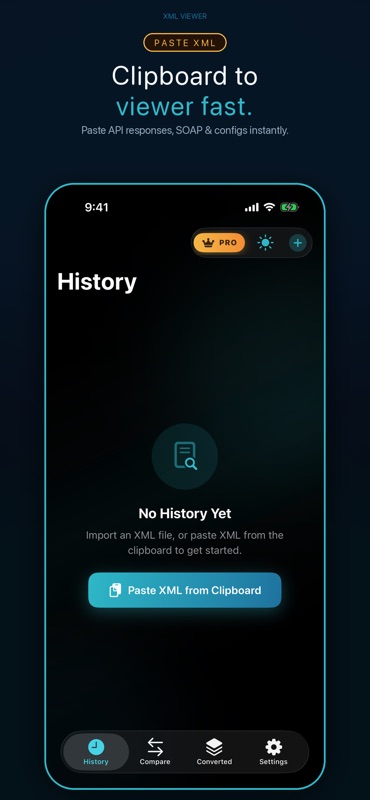
| Paste from clipboard | Edit & beautify | Find in XML |
|---|---|---|
 |
 |
 |
| Tree view | Export CSV · JSON · PDF |
|---|---|
 |
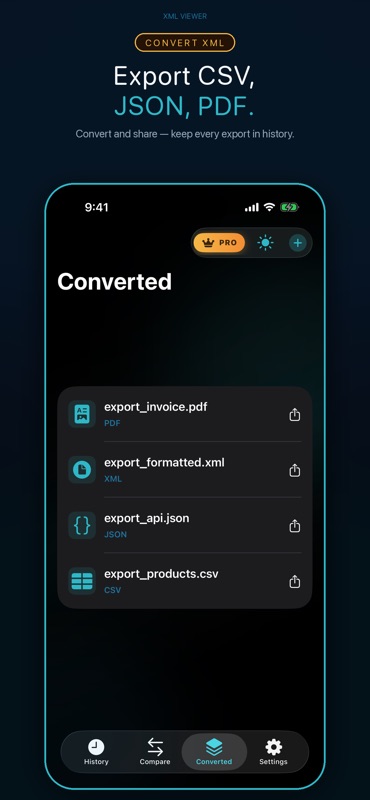 |
Table of contents
- What is an XML file?
- Why “open XML on iPhone” is harder than it looks
- The fastest way: XML Viewer on iPhone
- Feature deep-dive (everything the app does)
- How to open an XML file on iPhone (step-by-step)
- How to paste XML from the clipboard
- How to beautify / format XML (整形)
- How to minify XML
- Find in XML — search tags and values
- Tree view for nested SOAP & configs
- Side-by-side XML diff (compare)
- Convert XML to CSV, JSON, and PDF
- sitemap.xml on iPhone — can you open it?
- Free vs Pro (honest)
- Privacy: on-device, offline-first
- Who this app is for
- Troubleshooting: XML won’t open
- XML vs JSON on iPhone
- Quick FAQ
- Get XML Viewer free
What is an XML file?
XML means eXtensible Markup Language. An XML file (.xml) stores data as nested tags, attributes, and text — human-readable and machine-readable.
Example:
<?xml version="1.0" encoding="UTF-8"?>
<catalog>
  <book id="1">
    <title>Practical iPhone Utilities</title>
    <price>9.99</price>
  </book>
</catalog>
What XML is used for
| Use case | Examples |
|---|---|
| APIs & integrations | SOAP envelopes, enterprise payloads, legacy REST XML |
| Feeds & content | RSS / Atom feeds |
| Config & ops | App configs, device profiles, export dumps |
| SEO / web | sitemap.xml, feed files |
| Documents & data exchange | Invoice exports, product catalogs, government/EDI-style XML |
| Learning | Classroom exercises in markup structure |
XML file vs “XML format” vs “XML data”
People search all three — they usually mean the same thing:
- XML file — a
.xmldocument on disk or in Files - XML format / XML形式 — the markup style (tags + nesting)
- XML data / XMLデータ — the information inside those tags
If someone asks “what is an XML file?” the practical answer is: a text file that describes structured data with tags, not a Word doc and not a PDF.
Why “open XML on iPhone” is harder than it looks
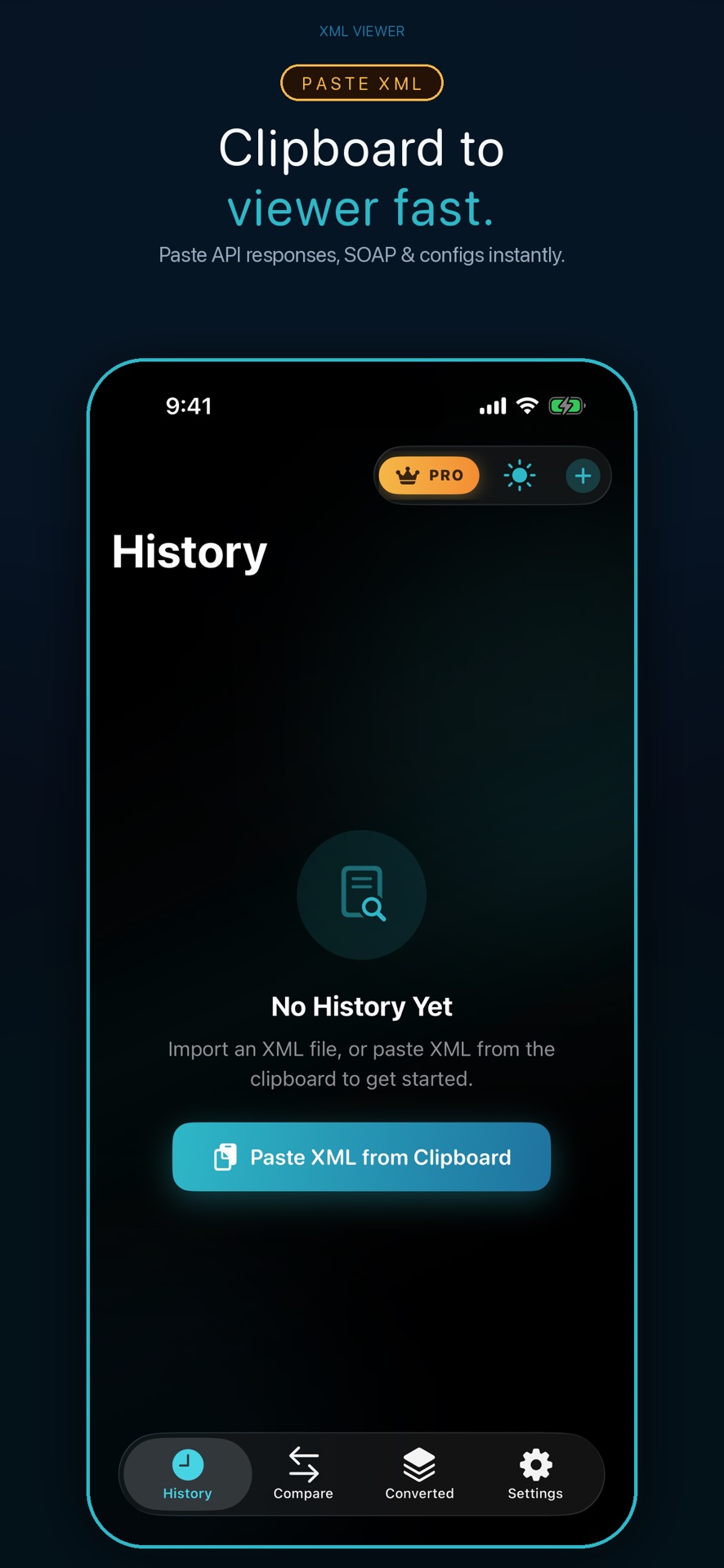
iPhone can store XML easily. Opening it usefully is the hard part.
What the Files app can do
- Save
.xmlfrom Mail, Safari downloads, AirDrop, or iCloud Drive - Preview raw text (sometimes)
- Share the file to another app
What Files / Notes / Safari usually cannot do well
- Pretty-print / beautify compressed one-line XML
- Validate broken tags and show a clear status
- Find every match for a tag or value and jump through them
- Tree view for deep SOAP / config nesting
- Diff two payloads before you deploy a config change
- Convert XML → CSV for Numbers/Excel, JSON for APIs, or PDF for sharing
That’s why searches like “open XML file on phone,” “XML file won’t open,” and “XML formatting” keep rising — people hit a wall on mobile.
XML Viewer: Editor & Formatter is built for that wall.
The fastest way: XML Viewer on iPhone
XML Viewer: Editor & Formatter is our App Store utility for iPhone and iPad (also runs on Apple silicon Mac and Vision with compatible OS versions).
At a glance
| Need | What you get |
|---|---|
| Open XML | Files, Mail, Safari, Share Sheet, or paste clipboard |
| Read & edit | Large-document editor with dark UI |
| Format | Beautify (pretty-print) & minify |
| Validate | Live validation status while you edit |
| Find | Search tags & values; jump previous/next match |
| Structure | Tree view for nested documents |
| Compare | Side-by-side diff of two XML inputs |
| Convert | Export to CSV, JSON, PDF, or XML |
| History | Recent opens + converted exports |
| Privacy | Processed on-device; works offline |
| Account | None required |
App size is lightweight (~5.8 MB). Requires iOS 17+ / iPadOS 17+.
Feature deep-dive
1) Instant XML viewer
Open API responses, SOAP envelopes, RSS, configs, exports, and student samples. Share Sheet support means you can send a .xml from Mail or Files straight into the viewer.
2) Paste from clipboard
Copy an XML payload from Slack, email, a browser, or Charles/Proxyman notes → tap paste in History → untitled document opens. Ideal for “I only have the XML text, not a file.”
3) Beautify & minify
- Beautify / format (XML 整形): indented, readable structure
- Minify: compact single-stream XML for size or transport
Format/minify supports documents up to the in-app format limit (large files supported with clear messaging if exceeded).
4) Find in XML
Search any tag name or value, then jump match-by-match. Faster than scrolling a 2,000-line SOAP dump with your thumb.
5) Tree view

Expand nested nodes and attributes — built for SOAP, WSDL-related payloads, and deep config trees. Tree view is optimized for files within the tree-size limit (very huge trees show a clear limit message).
6) Side-by-side compare (diff)
Drop two versions of a payload or config and spot what changed before deploy or ticket reply. Compare has its own size guardrails so the UI stays responsive.
7) Export / convert
| Export | Best for |
|---|---|
| CSV | Flatten repeating records into spreadsheets (Numbers, Excel, Google Sheets) |
| JSON | Hand off to modern APIs, Postman, or JSON Viewer & Formatter |
| Share a printable/readable snapshot with non-technical teammates | |
| XML | Save edited/beautified XML back out |
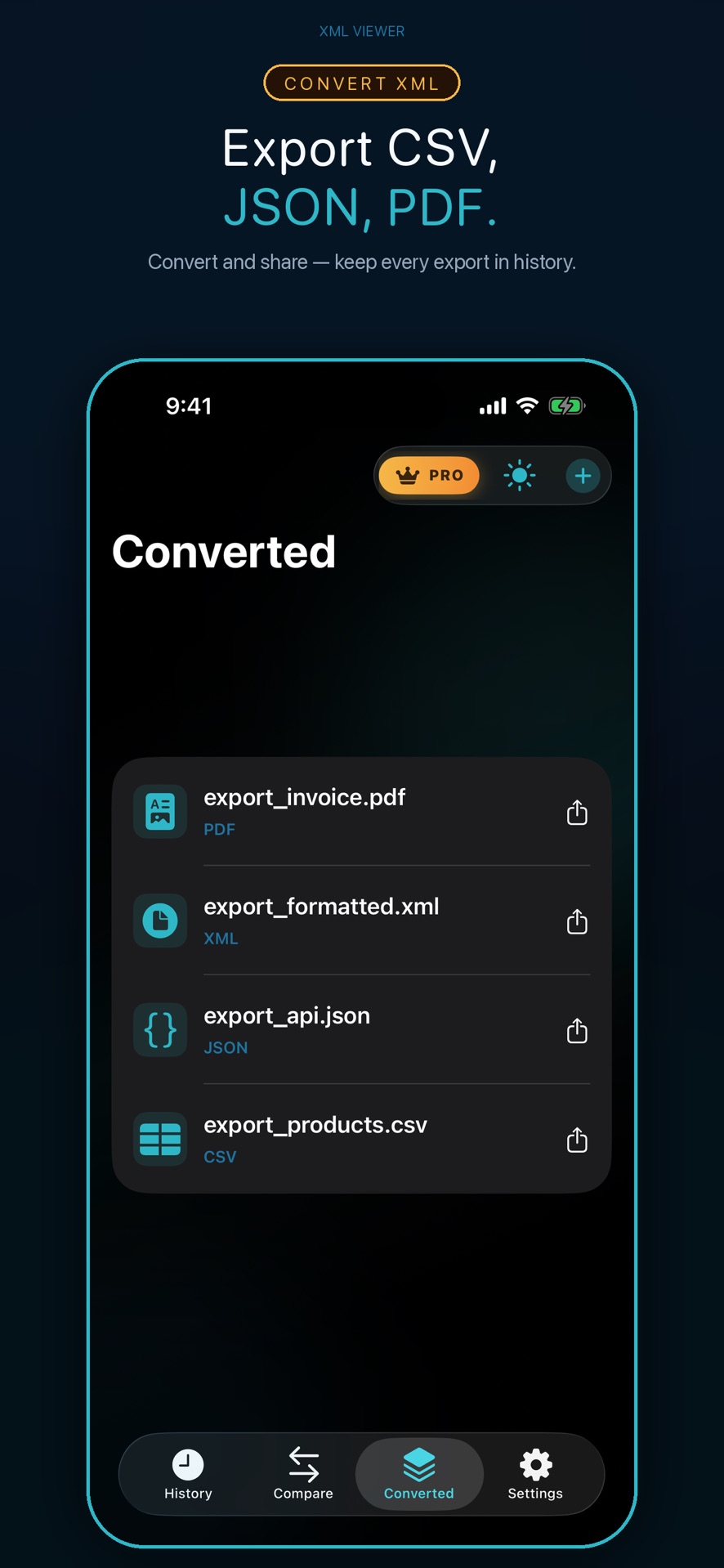
Exports land in a Converted library inside the app so you can re-share later.
8) History + converted files
Tabs for History, Compare, Converted, and Settings keep the workflow close to how real QA and support work — open → inspect → convert → share.
9) Dark UI built for long documents
Ink + cyan accent theme, light/dark toggle, loading phases for big imports, and cancelable loads when a huge file is reading.
How to open an XML file on iPhone
Method A — From Files / Downloads
- Install XML Viewer: Editor & Formatter.
- Open Files and find your
.xml(iCloud Drive, On My iPhone, Downloads). - Tap the file → Share → choose XML Viewer.
- Or open XML Viewer → import → pick the file.
Method B — From Mail or Safari
- Long-press the attachment or download.
- Tap Share.
- Select XML Viewer.
Method C — Open with… after install
After the first install, iOS often offers XML Viewer when you tap .xml files. Choose it once and iOS remembers your preference.
Method D — Sample files
On first launch the app can seed sample XML so you can learn the UI before importing production data.
How to paste XML from the clipboard
- Copy XML text from anywhere (email, chat, browser, terminal log).
- Open XML Viewer → History.
- Tap the clipboard / paste control.
- The app opens an untitled document with your pasted XML.
- Beautify, find, tree, or export as needed.
This is the #1 path for developers who get XML pasted into tickets — no file dance required.
How to beautify / format XML
Messy XML often arrives as one giant line. That’s painful on a phone screen.
- Open or paste your XML.
- Go to Edit & Format.
- Tap Format / Beautify.
- Scroll the indented result; validation status updates as you edit.
Beautifying is what Japanese searchers mean by XML 整形 — same job: make structure readable.
Tips
- Beautify first, then use Find — matches are easier to read in indented XML.
- If format refuses a giant file, check the on-screen size message or upgrade Pro for larger limits.
- Keep a minified copy only when you need compact transport.
How to minify XML
- Open the document in Edit & Format.
- Tap Minify.
- Copy or export the compact XML.
Use minify when uploading to size-sensitive systems or when a partner expects compact XML. Use beautify when you need to read it.
Find in XML
- Open a document in the viewer.
- Open the Find bar.
- Type a tag name (e.g.
price) or a value. - Use previous/next to jump every match.
- Clear the query when done.
Find turns a wall of tags into a checklist — especially useful in SOAP bodies and product feeds.
Tree view for nested SOAP & configs
- Open XML in the viewer.
- Tap View Tree Structure.
- Expand nodes; inspect attributes inline.
- If the file is too large for tree mode, the app explains the limit — switch to Find + Format instead.
Tree view is the fastest way for students and juniors to see hierarchy instead of guessing from indentation alone.
Side-by-side XML diff
- Open the Compare tab.
- Paste or load XML A (old / production).
- Paste or load XML B (new / candidate).
- Review the side-by-side differences.
- Fix in the editor, then re-export.
Perfect for support and ops: “what changed in this config before we push?”
Convert XML to CSV, JSON, and PDF
XML → CSV (for spreadsheets)
- Open a document with repeating records (products, rows, items).
- Open Edit & Format → export CSV.
- Free users may watch a short rewarded ad for export; Pro exports instantly.
- Find the file under Converted and Share to Files, Mail, or Numbers.
CSV is the answer when analysts say “just give me a spreadsheet.”
XML → JSON
- Export as JSON.
- Share to Files or open in JSON Viewer & Formatter for further JSON work.
XML → PDF
- Export as PDF.
- Share with teammates who don’t want raw tags.
- Useful for tickets, audits, and printable archives.
About “PDF to XML” searches
Many people search PDF → XML. This app’s conversion direction is XML → PDF (and CSV/JSON). Turning a scanned PDF into structured XML is a different problem (OCR + schema mapping). If your goal is “open XML and make a PDF,” you’re in the right place. If you need PDF OCR into XML, you’ll need a specialized pipeline — then you can view the resulting XML here.
About sitemap.xml
Yes — sitemap.xml is just XML. You can open it in XML Viewer, beautify it, find URLs, and export a PDF snapshot. Editing a live site sitemap still happens on your server or CMS; the phone app is for inspecting and sharing the file.
Free vs Pro (honest)
From the live App Store listing and in-app limits:
| Free | Pro | |
|---|---|---|
| View, edit, format, find, tree, compare | ✅ | ✅ |
| Ads | Only when online (no ads offline) | Ad-free |
| File size | Up to free limit (10 MB) | Up to 50 MB |
| Export CSV / JSON / PDF | Available (may use rewarded ad) | Instant, no ad |
| Large-file loading | Standard | Priority loading |
| Purchase options | — | Weekly / Monthly / Yearly (trial when offered) / Lifetime |
No account. Cancel subscriptions in Apple ID → Subscriptions anytime.
Privacy: on-device, offline-first
XML is processed on your iPhone or iPad. The app does not upload your documents to a developer server for viewing or formatting.
- Works offline for viewing and editing
- Ads (free tier) only appear when you’re online
- Good fit for client configs, internal SOAP dumps, and anything you shouldn’t paste into a random web “XML beautifier”
Privacy policy & support links are listed on the App Store page.
Who this app is for
| Role | Why it fits |
|---|---|
| Developers & QA | Inspect API XML, SOAP, WSDL-related payloads on the go |
| Analysts | Flatten feeds to CSV for Numbers / Excel |
| Support & ops | Diff config changes before deploy |
| SEO / site owners | Open and review sitemap.xml |
| Students | Learn structure with tree + search |
| Anyone stuck with “XML won’t open” | Dedicated viewer instead of fighting Files preview |
Troubleshooting: XML won’t open
| Symptom | Likely cause | Fix |
|---|---|---|
| Files shows gibberish / one line | Minified XML | Open in XML Viewer → Beautify |
| “Unsupported” or blank preview | iOS preview limits | Share → XML Viewer |
| App says file too large | Over free/Pro size cap | Trim file or upgrade Pro (50 MB) |
| Tree view blocked | Over tree size limit | Use Find + Format instead |
| Diff blocked | Over compare size limit | Diff smaller slices or trim |
| Export feels gated | Free tier rewarded ad | Watch ad or go Pro for instant export |
| Wrong encoding / strange characters | Non-UTF export from server | Re-export as UTF-8 from source, then reopen |
| Not actually XML | .xml renamed HTML/JSON |
Check first line for <?xml or root tags |
“I can’t open XML file” checklist
- Confirm the extension is
.xml(or the content is XML text). - Install XML Viewer.
- Share the file into the app (don’t rely on Files preview alone).
- Beautify.
- Validate in the editor — fix reported issues.
- If still failing, paste a small sample of the file into a new document to isolate corruption.
XML vs JSON on iPhone
| XML | JSON | |
|---|---|---|
| Shape | Tags + attributes | Braces / brackets |
| Common in | SOAP, feeds, sitemaps, legacy enterprise | Modern REST APIs |
| Our apps | XML Viewer | JSON Viewer & Formatter |
| Bridge | Export XML → JSON in XML Viewer, then polish in JSON Viewer | — |
If your team speaks JSON but a partner still sends XML, convert once on-device and move on.
How to create a simple XML file on iPhone
You don’t need a Mac to draft a tiny XML sample:
- Open XML Viewer → paste a starter template (or use a sample).
- Edit tags in Edit & Format.
- Validate until status is clean.
- Export / share the
.xml.
For large authored schemas, a desktop IDE is still better — use the phone for review, diff, and conversion.
Real workflows (copy these)
A) API / SOAP dump on the train
- Copy response XML from your laptop chat.
- Paste into XML Viewer.
- Beautify → Find the fault code → screenshot or PDF export for the ticket.
B) Product feed → spreadsheet
- AirDrop
products.xmlto iPhone. - Open in XML Viewer.
- Export CSV → open in Numbers.
C) Config change review
- Paste yesterday’s config into Compare (left).
- Paste today’s candidate (right).
- Confirm only intended nodes changed.
- Approve deploy.
D) Sitemap sanity check
- Download
sitemap.xmlfrom your site. - Open → Beautify → Find a path you just published.
- Share PDF with your content team.
Quick FAQ
What is an XML file?
A text file that stores structured data using tags (markup). Common for APIs, feeds, configs, and sitemap.xml.
How do I open an XML file on iPhone?
Install XML Viewer: Editor & Formatter, then Share the .xml from Files/Mail/Safari into the app — or paste XML from the clipboard.
Why won’t my XML file open?
iOS preview is limited; the file may be minified, too large, wrongly encoded, or not valid XML. Open it in XML Viewer, beautify, and check validation.
Can I format / beautify XML on iPhone?
Yes — Edit & Format → Beautify. That’s XML pretty-print (整形) on mobile.
Can I convert XML to PDF on iPhone?
Yes — export as PDF from XML Viewer. (PDF→XML is a different, OCR-heavy task.)
Can I convert XML to CSV or JSON?
Yes — built-in exporters for CSV and JSON, with a Converted files library.
Does it work offline?
Yes for viewing/editing. Free-tier ads only show when online.
Is my XML uploaded to a server?
No — processing is on-device for viewing and formatting.
Do I need an account?
No.
What’s the difference between Free and Pro?
Pro removes ads, raises the file limit to 50 MB, and unlocks instant exports without rewarded ads.
Can I open sitemap.xml?
Yes. It’s standard XML — view, beautify, search URLs, export PDF if needed.
Is this a full IDE?
No. It’s a focused mobile viewer/editor/converter — fast for inspection and conversion, not a desktop replacement for huge authoring projects.
ASO note for App Store searchers
If you found this post while searching the App Store for phrases like XML viewer, XML beautifier, XML to PDF, XML converter, or XML editor iPhone, the matching app is:
→ XML Viewer: Editor & Formatter
Subtitle focus: XML Beautifier, Diff & CSV
Related utility: JSON Viewer & Formatter
Get XML Viewer free
Stop fighting Files previews and random web beautifiers. Open, format, find, diff, and convert XML on iPhone — privately.
→ Download XML Viewer: Editor & Formatter on the App Store
More from Just Clack: JSON Viewer & Formatter · Circle Crop: Photo Crop & PFP · MP3 Converter • Video to Audio · All our iOS apps
Comments
Post a Comment