What is a JSON file? Format, beautify, validate, and view JSON on iPhone — tree view, compare, search keys, export CSV/XML/YAML. Offline JSON Viewer & Formatter.
Download our app: JSON Viewer & Formatter on the App Store — beautify & minify JSON, validate syntax, tree view, compare two payloads, search keys/values, export to CSV · XML · YAML. Offline · on-device · free to start.

Short answer: A JSON file stores structured data with curly braces {}, square brackets [], keys, and values. To format, beautify, validate, or view JSON on iPhone without a laptop, use JSON Viewer & Formatter — paste from clipboard or open a .json file, then pretty-print, minify, explore a tree, compare two documents, and convert to CSV, XML, or YAML offline.
If you searched JSON formatter, JSON viewer, JSON validator, JSON beautifier, what is a JSON file, or JSON format — this is the complete iPhone guide.
Table of contents
- What is a JSON file?
- JSON format basics (braces, brackets, keys)
- Why you need a JSON viewer on iPhone
- Meet JSON Viewer & Formatter
- Feature deep-dive
- How to open a JSON file on iPhone
- How to paste JSON from the clipboard
- How to beautify / format JSON
- How to minify JSON
- How to validate JSON
- Tree view explorer
- Search JSON keys and values
- Compare two JSON documents
- Syntax themes (Xcode, Monokai, Solarized, GitHub)
- Convert JSON to CSV, XML, and YAML
- Free vs Pro
- Privacy & offline
- JSON vs XML on iPhone
- Troubleshooting invalid JSON
- Who this app is for
- Quick FAQ
- Get JSON Viewer & Formatter
What is a JSON file?
JSON means JavaScript Object Notation. A JSON file (often .json) is plain text that represents data as objects and arrays — the default language of modern APIs, app configs, and many exports.
Example:
{
  "name": "Just Clack",
  "platform": "iPhone",
  "features": ["beautify", "validate", "compare"],
  "active": true,
  "version": 2
}
What people mean by “JSON”
| Search phrase | Practical meaning |
|---|---|
| JSON / JSON file | The document or payload itself |
| JSON format | The rules: keys in quotes, commas, braces/brackets |
| JSON formatter / beautifier | Pretty-print indented JSON |
| JSON viewer | Read and explore structure on a screen |
| JSON validator | Check whether the text is valid JSON |
Where JSON shows up every day
- REST API responses (Postman, Charles, Safari Web Inspector dumps)
- Mobile app configs and feature flags
- Firebase / analytics exports
- OpenAPI samples and webhook payloads
- LLM / AI tool outputs
- Package manifests and theme files
JSON format basics
Valid JSON is picky. These are the pieces that confuse new readers:
| Token | Role | Example |
|---|---|---|
{ } curly braces |
Object (key → value map) | { "id": 1 } |
[ ] square brackets |
Array (ordered list) | [1, 2, 3] |
"keys" |
Always double-quoted strings | "email" |
| Values | string, number, true/false, null, object, array |
"hi", 42, null |
| Commas | Separate items — no trailing comma | "a":1, "b":2 |
Square brackets vs curly braces (quick answer)
- Use
[]for a list of items. - Use
{}for a named object. - Nested structures mix both: arrays of objects, objects of arrays.
When a validator says “unexpected token,” it’s often a missing comma, a trailing comma, single quotes instead of double quotes, or an unquoted key.
Why you need a JSON viewer on iPhone
Notes, Mail, and Files can store JSON. They rarely help you debug it:
- One giant minified line on a phone screen
- No validation status
- No tree for nested objects
- No compare against yesterday’s payload
- No export to CSV for a spreadsheet
- Online “JSON beautifier” sites upload your data — bad for client APIs
JSON Viewer & Formatter is built for that mobile gap: format, validate, visualize, compare, and convert — offline.
See the app in action
| Beautify & edit | Tree / explore | Compare & tools |
|---|---|---|
 |
 |
 |
| History & import | More screens |
|---|---|
 |
 |
Meet JSON Viewer & Formatter
App: JSON Viewer & Formatter
Subtitle focus: Validate, Beautify, Compare JSON
Category: Utilities · Size: ~5.5 MB · Requires: iOS 17+ / iPadOS 17+
Developer: Muhammad Mujahid Khan (Just Clack)
| Need | What you get |
|---|---|
| View JSON | Open .json or paste clipboard |
| Beautify / format | Pretty-print with sorted keys |
| Minify | Compact JSON for transport |
| Validate | Clear Valid / Invalid status |
| Tree view | Expandable structure + search |
| Compare | Spot differences between two JSONs |
| Themes | Xcode, Monokai, Solarized Dark, GitHub |
| Convert | Export CSV, XML, YAML, or JSON |
| History | Recent files on the History tab |
| Privacy | On-device · works offline |
Feature deep-dive
Beautify & minify
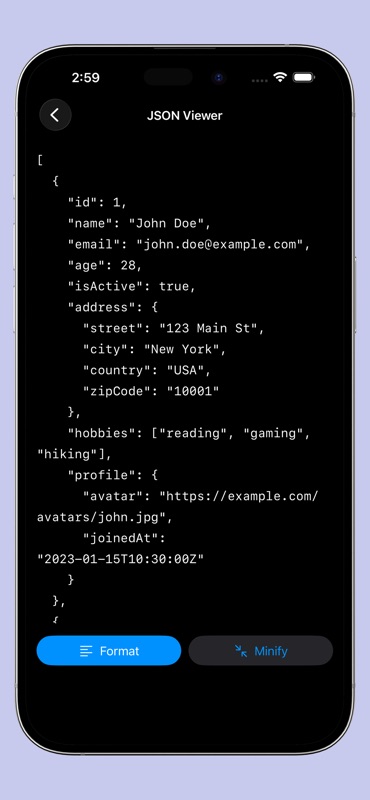
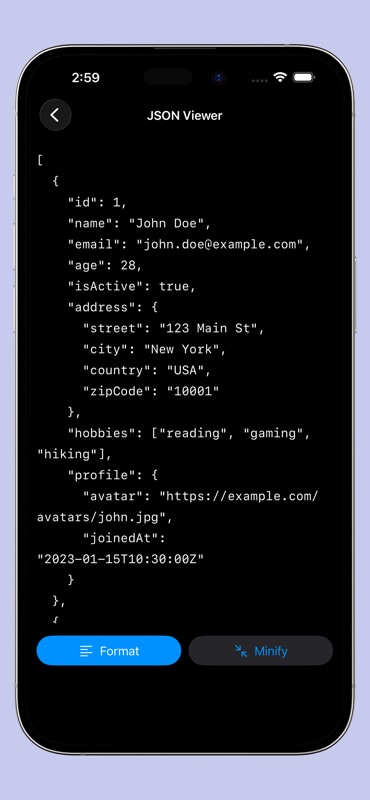
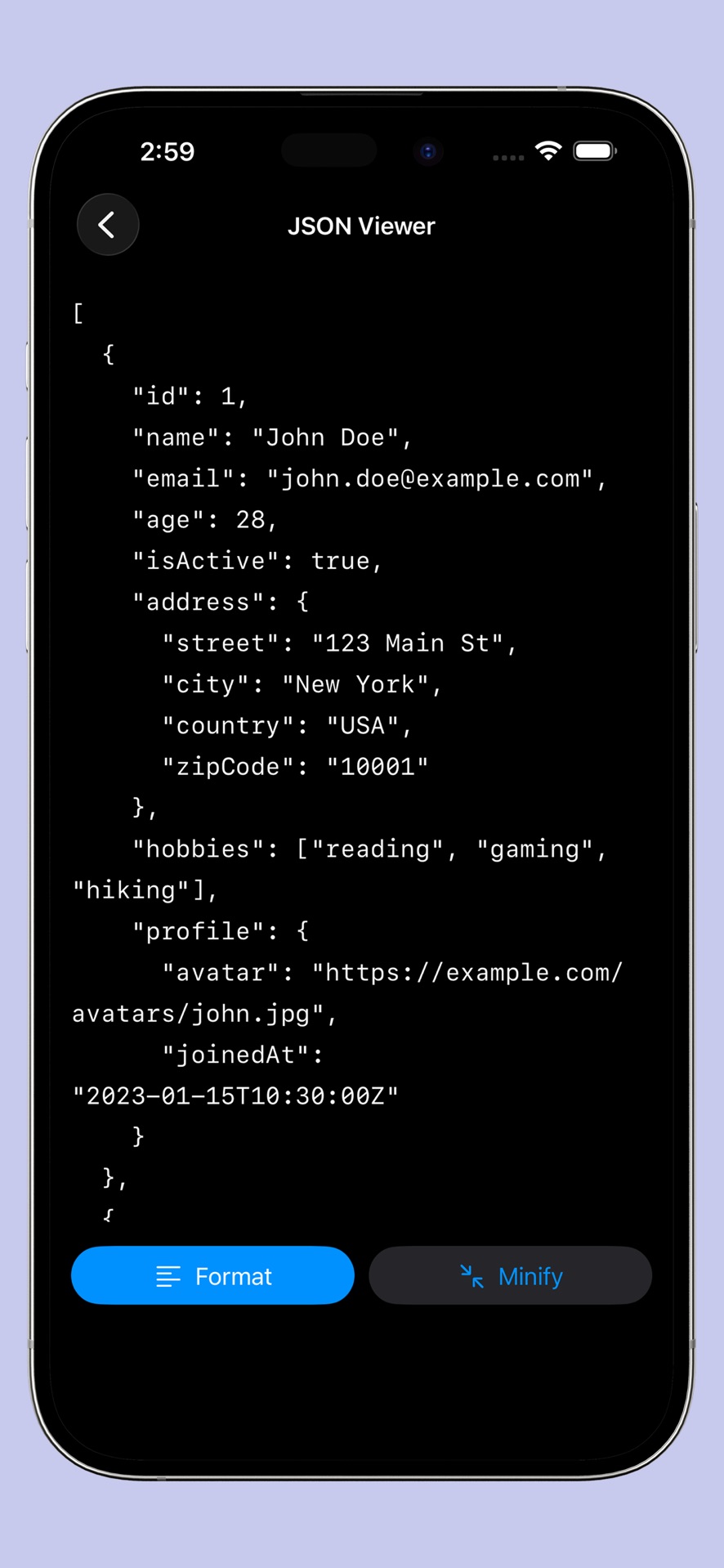
One tap turns a single-line API dump into readable indented JSON — or compresses it back for size. Formatting uses proper JSON serialization (pretty-print + sorted keys) so output is consistent and shareable.
JSON validator
As you edit, the app reports Valid JSON ✓ or Invalid JSON ✗ with an error description. Faster than guessing which comma broke your webhook.
Tree view explorer
Interactive expandable nodes with syntax coloring. Built for deep API responses where scrolling raw text hides the shape of the data.

Search keys & values
Find a field name or value inside large documents without pinching through thousands of lines.
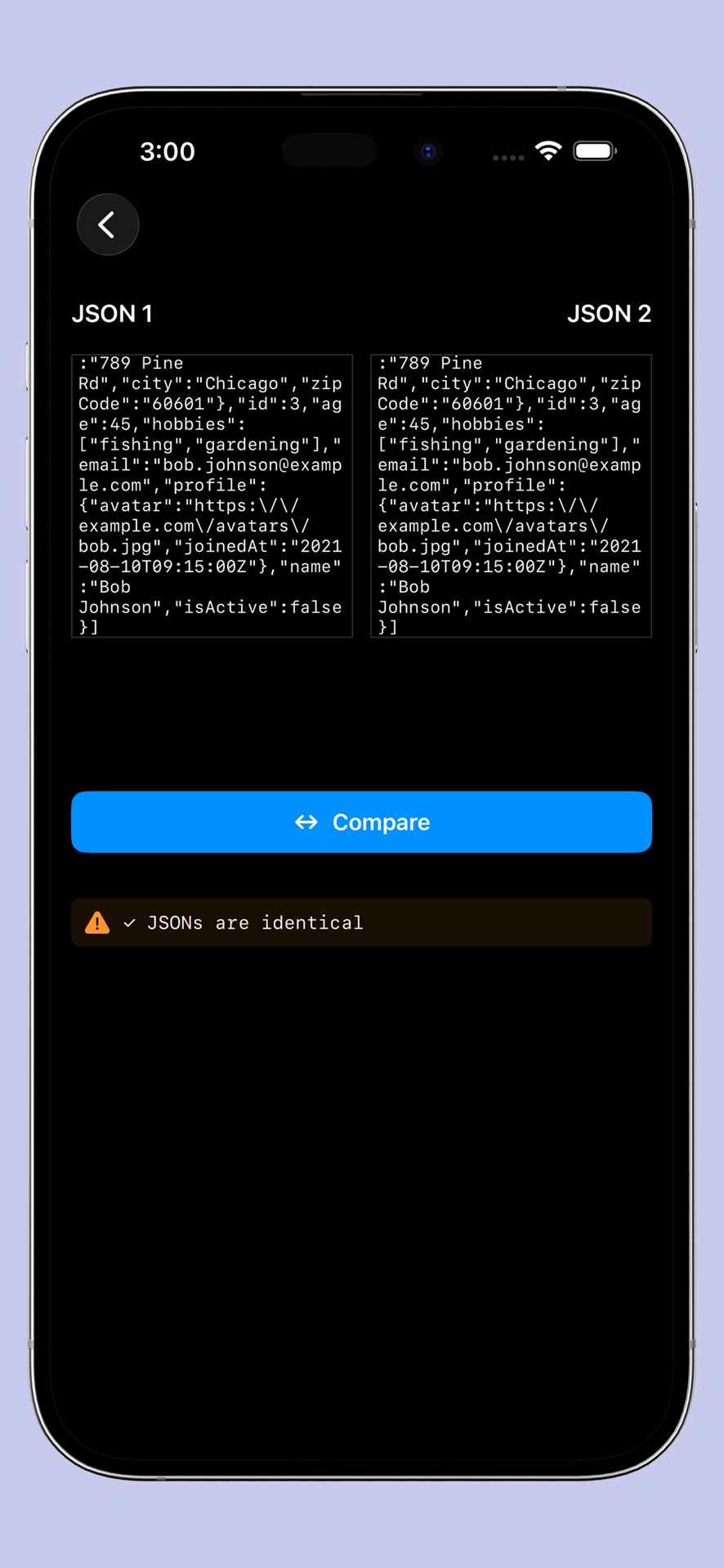
Compare two JSONs
The Compare tab is for “what changed?” — production vs staging, before/after a patch, or two webhook samples side by side.
Custom syntax themes
Choose Xcode, Monokai, Solarized Dark, or GitHub color styles so keys, strings, numbers, and booleans stay readable at phone size.
Smart loading for larger files
Loading indicators for import, format, export, and compare keep the UI honest when files get heavy — with clear errors if content is empty, invalid, or too large for a given action.
Share & export
Share beautified JSON text, or convert to other formats your teammates actually open.
How to open a JSON file on iPhone
- Install JSON Viewer & Formatter.
- Find your
.jsonin Files, Mail, or a download. - Tap Share → choose JSON Viewer & Formatter.
- Or open the app → import from the toolbar.
- Tap Beautify if the file is minified.
- Check the validation badge — fix issues in the editor if needed.
How to paste JSON from the clipboard
- Copy JSON from Slack, email, Safari, Proxyman, or your laptop.
- Open the app → History.
- Paste from clipboard into a new document.
- Beautify → validate → tree or export.
This is the fastest path when you don’t have a file — only a pasted payload.
How to beautify / format JSON
- Open or paste your JSON.
- Open the Editor.
- Tap Beautify / Format.
- Scroll the indented result; keys are sorted for stable diffs later.
Beautify is what most people mean by JSON formatter or JSON beautifier.
Tips
- Beautify before you compare two versions — diffs are clearer.
- Beautify before sharing with non-dev teammates.
- Keep a minified copy only when an API or size budget requires it.
How to minify JSON
- Open the Editor.
- Tap Minify.
- Copy or export the compact JSON.
Use minify for request bodies, storage, or when a partner expects compact JSON.
How to validate JSON
- Paste or open the document.
- Watch the validation status (or tap validate).
- If invalid, read the error — usually trailing commas, single quotes, or a missing brace.
- Fix → re-validate until you see Valid JSON ✓.
A dedicated JSON validator on your phone saves round-trips to a laptop when you’re on-call.
Tree view explorer
- From the viewer, open Tree.
- Expand objects and arrays.
- Use search to jump to a key.
- Switch themes if contrast is hard in bright light.
Tree view answers “what shape is this response?” faster than raw text.
Search JSON keys and values
- Open Tree (or search UI in the explorer).
- Type part of a key (
userId) or a value (timeout). - Matching nodes stay visible; unrelated branches collapse/filter.
Ideal for huge configs where you only need one flag.
Compare two JSON documents
- Open the Compare tab.
- Paste or load JSON A (baseline).
- Paste or load JSON B (candidate).
- Review differences.
- Fix in the editor and re-export if needed.
Use cases: API version changes, localization file edits, feature-flag dumps, “customer sent this / we expected that.”
Syntax themes
| Theme | Feel |
|---|---|
| Xcode | Familiar Apple IDE-style accents |
| Monokai | High-contrast dark favorite |
| Solarized Dark | Softer long-session reading |
| GitHub | Clean light/dark web-inspired colors |
Pick once in settings / theme picker; tree and editor stay readable.
Convert JSON to CSV, XML, and YAML
From the Editor → Export Formats:
| Export | Best for |
|---|---|
| CSV | Spreadsheets (Numbers, Excel). Supports a JSON object, an array of objects, or an array of primitives |
| XML | Partners who still speak XML — then open in XML Viewer: Editor & Formatter |
| YAML | DevOps / config workflows |
| JSON | Share the beautified or edited JSON file |
CSV tip
If CSV export fails, your JSON may be a deeply nested mix CSV can’t flatten cleanly. Flatten to an array of objects first, or export YAML/XML instead.
JSON → XML → back
Need XML tooling after conversion? Use our sister app XML Viewer — and read the companion guide: How to open, format & convert XML on iPhone.
Free vs Pro
From the App Store listing and in-app paywall:
| Free | Pro | |
|---|---|---|
| View / edit / format / minify / validate | ✅ | ✅ |
| Ads | May show when online | Ad-free |
| Larger / unlimited JSON | Limits may apply | Unlimited JSON emphasis |
| Export formats | Available (may be gated) | Export all formats |
| Tree view & compare | Available with Pro positioning in UI | Full access |
| Advanced editor / highlighting | — | Highlighted as Pro |
| Price examples | — | Weekly $1.99 · Monthly $4.99 · Yearly $24.99 |
Subscriptions auto-renew unless canceled in Apple ID → Subscriptions at least 24 hours before renewal. Restore purchases from the paywall if you reinstall.
Privacy & offline
Unlike browser beautifiers, this app is built to keep payloads on your device:
- Format, validate, and explore offline
- No account required to start
- Better fit for client APIs, auth tokens in samples (still redact secrets!), and internal configs
Support & privacy: linked from the App Store page and Just Clack.
JSON vs XML on iPhone
| JSON | XML | |
|---|---|---|
| Shape | {} / [] |
Tags + attributes |
| Common in | Modern REST, mobile, AI tools | SOAP, feeds, sitemaps, legacy |
| Our apps | JSON Viewer & Formatter | XML Viewer: Editor & Formatter |
| Bridge | Export JSON → XML here | Export XML → JSON there |
Keep both utilities if your week mixes API JSON and enterprise XML.
Troubleshooting invalid JSON
| Symptom | Likely cause | Fix |
|---|---|---|
| Invalid JSON ✗ | Trailing comma | Remove comma after last property |
| Unexpected token | Single quotes 'key' |
Use double quotes "key" |
| Unexpected end | Missing } or ] |
Count braces/brackets; beautify after partial fix |
| CSV export fails | Wrong shape | Use array of objects or primitives |
| File won’t open | Not UTF-8 / truncated download | Re-download; paste a sample to test |
| Looks like JSON but fails | JS object with unquoted keys | Convert to real JSON (quoted keys) |
| Huge file sluggish | Very large payload | Minify only what you need; use search in tree |
“What is wrong with my JSON?” checklist
- Paste into JSON Viewer & Formatter.
- Read the validator message.
- Fix quotes/commas/braces.
- Beautify.
- Re-validate.
- Tree-search the field you care about.
Who this app is for
| Role | Why it fits |
|---|---|
| Developers | Format API responses on the go |
| QA | Validate fixtures and compare expected vs actual |
| Students | Learn JSON structure with tree + themes |
| Analysts | JSON → CSV for quick spreadsheet checks |
| Support / ops | Diff configs; share beautified samples |
| Anyone | Stuck with a .json that Files won’t make readable |
Real workflows
A) On-call API failure
- Copy response body from the ticket.
- Paste → Beautify → Validate.
- Tree-search
error/code. - Screenshot or share formatted JSON back.
B) Compare staging vs production flags
- Compare tab → paste both JSON blobs.
- Confirm only intended keys changed.
- Approve the release.
C) Feed → spreadsheet
- Open
items.json. - Export CSV.
- Open in Numbers.
D) Hand off to an XML team
- Export as XML.
- Continue in XML Viewer.
Quick FAQ
What is a JSON file?
A text file that stores structured data using objects {} and arrays [] with quoted keys — widely used by APIs and apps.
What is JSON format?
The syntax rules: double-quoted keys, commas between items, no trailing commas, and correct nesting of braces and square brackets.
How do I format / beautify JSON on iPhone?
Open JSON Viewer & Formatter → Editor → Beautify.
How do I validate JSON on iPhone?
Paste or import the text; the app shows Valid / Invalid with an error message.
Is there a JSON viewer for iPhone offline?
Yes — this app works offline for viewing, formatting, and exploring on-device.
Can I compare two JSON files?
Yes — use the Compare tab.
Can I convert JSON to CSV, XML, or YAML?
Yes — built-in exporters in the Editor.
Do square brackets mean an array?
Yes. [] = array, {} = object.
Do I need an account?
No.
What’s Pro for?
Ad-free use, stronger limits, exports, tree/compare, and advanced editor features as offered in the paywall.
JSON formatter vs JSON viewer — which is this?
Both: it formats/beautifies and views/validates/compares — one utility.
ASO note for App Store searchers
If you found this while searching the App Store for JSON formatter, JSON viewer, JSON validator, JSON beautifier, or JSON file, the matching app is:
→ JSON Viewer & Formatter
Validate, Beautify, Compare JSON
Sister utility: XML Viewer: Editor & Formatter
Get JSON Viewer & Formatter
Stop pasting secrets into random websites. Beautify, validate, explore, compare, and convert JSON on iPhone — privately.
→ Download JSON Viewer & Formatter on the App Store
More from Just Clack: XML Viewer: Editor & Formatter · Open XML on iPhone guide · Circle Crop · All our iOS apps
Comments
Post a Comment